
Teach and review
Correspondents and stringers
Correspondents and stringers give students a way to ask a reporting contact for context or a lead. The wizard prepares briefs and displays chat links that you supply.
Find contacts for your stories
- On Choose a starting point, select Correspondents and stringers.
- Choose the stories and pace for your exercise, then open Review and schedule.
- Set the scheduled start and time zone. Open Correspondent and stringer briefs.
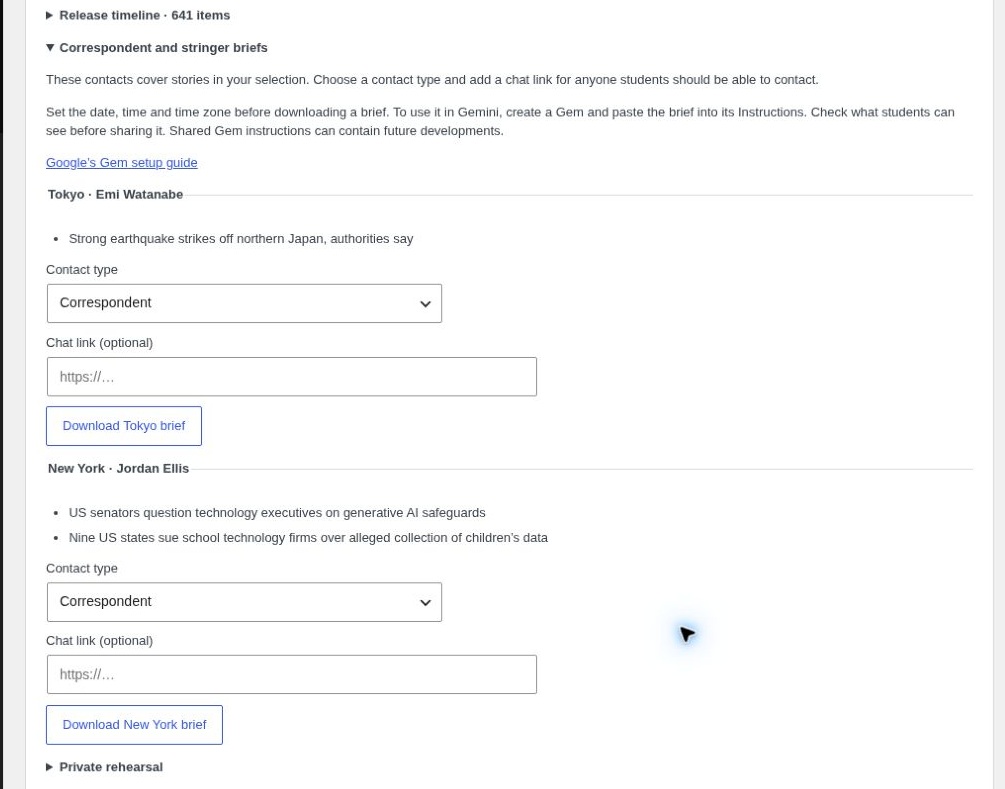
Each suggested contact has a list of matching stories. For example, Tokyo appears when a selected story is mapped to that bureau. Choose Correspondent or Stringer to put the contact in the appropriate section for students.
Download a brief and add a chat link
- Click Download [city] brief. The brief uses the scheduled times and includes reporting notes where the Story Pack has them.
- Create the contact in your chat tool. For Gemini, paste the text into the Gem’s Instructions, then preview and save it. Google’s Gem setup guide.
- Paste the link into Chat link (optional). Test it with a student account before class. Contacts with blank links stay hidden from students.
- Schedule the run. If you change the start time, stories or contact type, download a fresh brief and update the chat tool.
Check what your chat tool shares. If a platform exposes shared instructions, students may be able to read future developments. Test the permissions and student experience before distributing links.