
Run the class
Keep the instructor dashboard open during the exercise. Use a separate private browser window to check what students see.
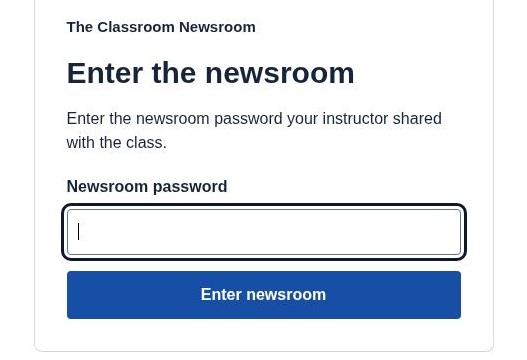
Share the student newsroom
- On the dashboard, find Current exercise → Open student newsroom. You can also find Student newsroom in the wizard’s Runs panel.
- Copy the student link. Share it and the newsroom password through your usual classroom channel.
- Open the link in a private window and enter the password yourself. If sources are due to open later, check again at the opening time.
Students use the classroom password on the student site. If you use the built-in Publication desk, each team also needs its own editing code. Share team codes separately.
During the live round
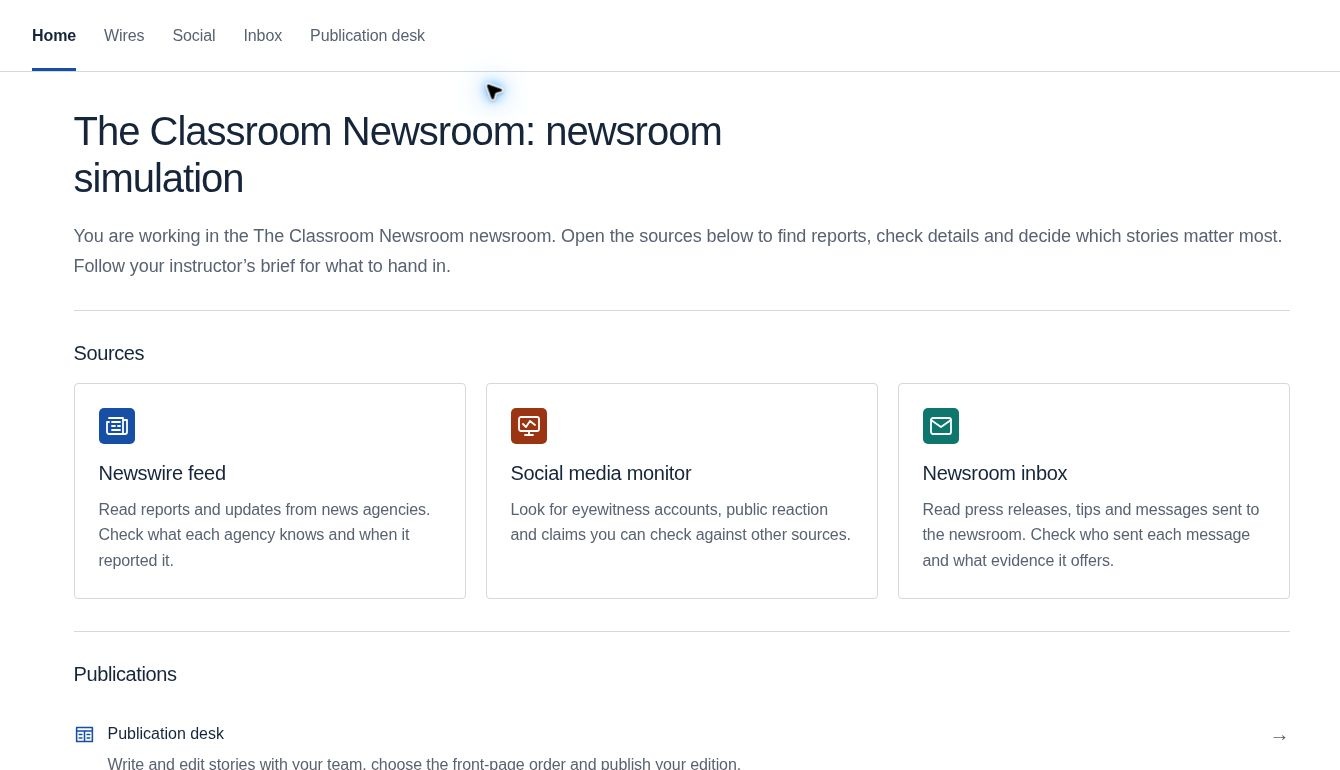
Ask students to open the sources named in the lesson and record what they knew when they made each decision. A wire may be followed by corrections or updates. A social post or inbox message may add context without independently confirming the underlying claim.
Finish and close the exercise
When the timed round ends, the released items stay available for discussion. If students are publishing or you still need to read their editions, finish that work first. When you are ready to close the newsroom, open the wizard and select Stop run. To teach the same exercise again, use Reuse a saved run.